A home online-safety checklist, in order of effect
Advertising disclosure
This page contains a partner link. If you subscribe to a product after following it, CLEANING SERVICES HAIOSH s.r.o. receives a commission from the vendor, at no extra cost to you. It does not change what this page says: no advertiser reviews our text before publication. See the full disclosure and our editorial policy.
Trademark notice: this site is independent and is not affiliated with, endorsed by or sponsored by any brand named here. All trademarks belong to their owners.
Security advice is usually presented as an undifferentiated list, which is unhelpful, because the items are not remotely equal. This checklist is ordered by how much difference each step makes for an ordinary household. The first four are free.
1. Put two-factor authentication on your e-mail account
Your e-mail is the reset channel for everything else you own. Whoever controls it can request a password reset for your bank, your shopping accounts and your social media, and receive the link. Securing it first is not a matter of taste.
Use an authenticator app or a hardware key rather than SMS where the service offers the choice; SMS codes can be intercepted by transferring your number to another SIM. Save the recovery codes the service gives you somewhere offline — on paper is fine.
2. Stop reusing passwords
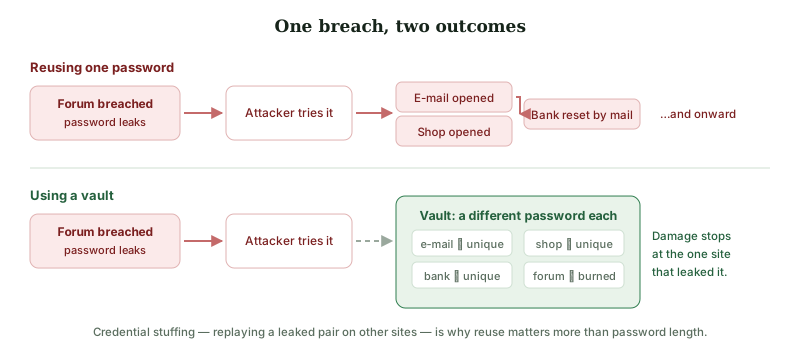
The most common way ordinary people lose an account is not malware. It is credential stuffing: a password leaks in a breach at one company, and attackers replay the same e-mail-and-password pair automatically across hundreds of other services. Reuse is what turns one company's failure into your problem.
A password manager makes reuse unnecessary: one strong master passphrase, and a different generated password everywhere else. Browsers now include serviceable ones for free; dedicated managers and security suites offer them too. Before committing to any of them, check that it has an export function, so you are never locked in.
3. Install updates, and stop postponing the restart
Most successful attacks use a vulnerability that already has a fix available. Turn on automatic updates for the operating system, the browser and anything internet-facing, and let the machine restart when it asks. An update that has downloaded but not been applied has protected nobody.
The same applies to devices people forget are computers: routers, network storage, cameras, printers. If a device has not received a firmware update in several years, the manufacturer has probably stopped supporting it.
4. Keep one backup that is not plugged in
Ransomware encrypts everything it can reach, which includes the external drive that is always connected and, in some cases, the cloud folder that syncs automatically. A copy that is disconnected — an external disk you unplug, or a versioned backup service that keeps previous states — is the only defence that works after every other one has failed.
Test it once. An untested backup is a hypothesis.
5. Learn what a real alert looks like
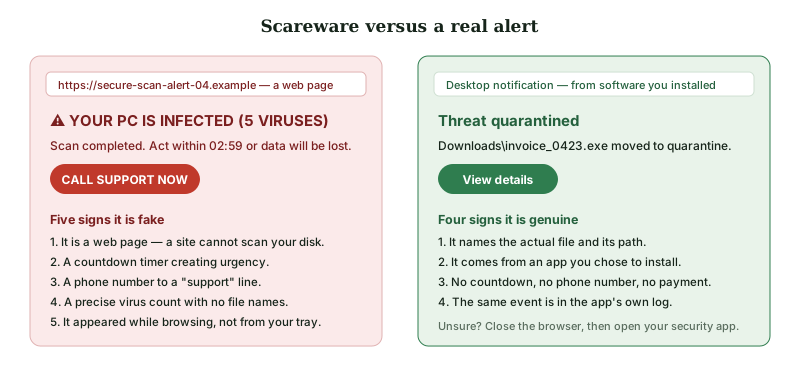
A web page cannot scan your hard disk. Any "virus scan" that appears inside a browser window, counts threats, starts a countdown and offers a telephone number is a scam, whatever logo it wears. A genuine alert comes from software you installed, names the specific file, appears in that software's own history, and never asks you to telephone anyone.
If you are unsure: close the browser entirely — do not click anything inside the page — then open your security software yourself and look at its log.
6. Slow down on the messages that create urgency
Phishing works by rushing you. The parcel that cannot be delivered, the account that will be closed today, the invoice that is overdue, the colleague who needs a payment made before a meeting. The shared ingredient is time pressure, because thinking is the countermeasure.
Never act on a link in an unexpected message. Reach the organisation the way you normally would — your own bookmark, the app, the number on your card — and check there. Legitimate organisations do not lose anything by your taking two minutes.
7. Consider a VPN for what it actually does
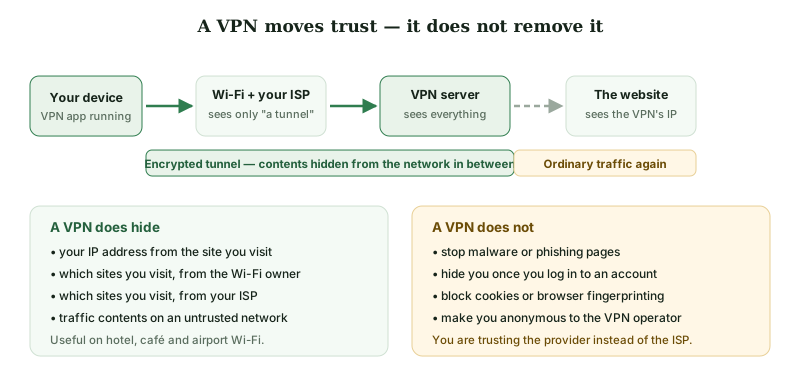
On untrusted Wi-Fi — hotels, airports, cafés — a VPN genuinely stops the network operator seeing which sites you reach. At home it mainly moves that visibility from your internet provider to the VPN provider. It does not block malware, does not stop phishing, does not prevent tracking by cookies or fingerprinting, and does not make you anonymous once you log in anywhere. Useful, narrowly.
8. Review what has access to your accounts
Once a year, open the security settings of your main accounts and look at connected applications, active sessions and recovery addresses. Revoke anything you do not recognise or no longer use. The recovery phone number and e-mail address matter most: an out-of-date recovery address is a way back in for someone else.
9. Decide whether a paid suite adds anything for you
By this point you have covered most of the risk for free. A paid suite can still make sense — cross-platform cover for a family, a VPN and a password manager on one bill, a simple interface for someone who will not otherwise open a security app. It makes less sense if you are content with the protection built into your operating system and would rather pick each tool on its own merits. Our main article works through that decision, including the renewal price, which is where most regret in this category comes from.
10. Write down what you would do
If your laptop were stolen tomorrow, or your e-mail password stopped working, what is the first call? Knowing where your recovery codes are, which card to cancel, and which account to secure first converts a panic into a procedure. Ten minutes, once.
The whole list, in one place
- Two-factor authentication on e-mail — free
- A unique password everywhere, via a manager — free options exist
- Automatic updates, and let it restart — free
- One disconnected backup, tested once — cost of a disk
- Know what a real alert looks like — free
- Distrust urgency in messages — free
- A VPN, for untrusted networks — paid, narrow benefit
- Annual account access review — free
- Decide on a paid suite last, not first
- Write down your recovery plan — free
Sources
- ENISA, consumer cyber-hygiene guidance — enisa.europa.eu
- Microsoft, Microsoft Defender Antivirus documentation — learn.microsoft.com
- Apple Platform Security guide — support.apple.com
This is general information, not advice tailored to your circumstances, and no outcome is guaranteed. Found an error? info@krasovin.online.